
The Cloudways WordPress Migrator allows you to easily move your WordPress or WooCommerce website to a new Cloudways Application. In order to properly protect your site’s content and links as well as ensure that your visitors can still access your website during the Cloudways migration, careful planning is necessary. In this guide we will go through the necessary steps including transfer, testing, DNS and SSL.
CONTENTS
- Key Takeaways
- How to Plan a Cloudways Migration Without Losing Data
- Choose a migration route
- Make a restorable backup
- How Do You Set Up the Cloudways Destination?
- Launch a WordPress application
- Install the Migrator on the source site
- Gather destination details
- How Do You Configure and Run the WordPress Migrator Plugin?
- Enter the connection and authentication settings
- Choose directories and start the transfer
- Troubleshoot common migration problems
- How Do You Test the Site, Change DNS, and Enable SSL?
- Check the migrated site before launch
- Point your domain to Cloudways
- Enable SSL and reduce downtime
- Conclusion
- FAQ
- Can I migrate a WooCommerce store with the Cloudways WordPress Migrator?
- What should I select if my source WordPress site has password protection?
- Does the Migrator transfer custom folders outside WordPress?
- How long can a Cloudways WordPress migration take?
- Does changing DNS transfer my domain registration to Cloudways?
- Should I keep a backup after the migrated site is live?
SFTP (SSH File Transfer Protocol) securely transfers files between computers and servers. The free plugin supports WordPress and WooCommerce migrations to Cloudways, not other hosts. Keep your current hosting account active until you have checked the destination site and domain.
Key Takeaways
- Keep a restorable copy of your database and site files.
- Choose the plugin or request support-assisted migration.
- Launch a Cloudways application before starting the transfer.
- Test pages, forms, admin access, and store orders.
- Change DNS only after the destination passes your checks.
- Keep the existing host available until you have checked the migrated site and domain.
How to Plan a Cloudways Migration Without Losing Data
Before changing hosts, make a restorable copy of your WordPress database and files. Keep the source site and backup intact until you have checked the new application and domain. A backup gives you a recovery option if files are missing or the transferred site needs repair.
Choose a migration route based on who will manage the transfer and what access you have. The Cloudways platform offers a plugin route and support-assisted migration.
Choose a migration route
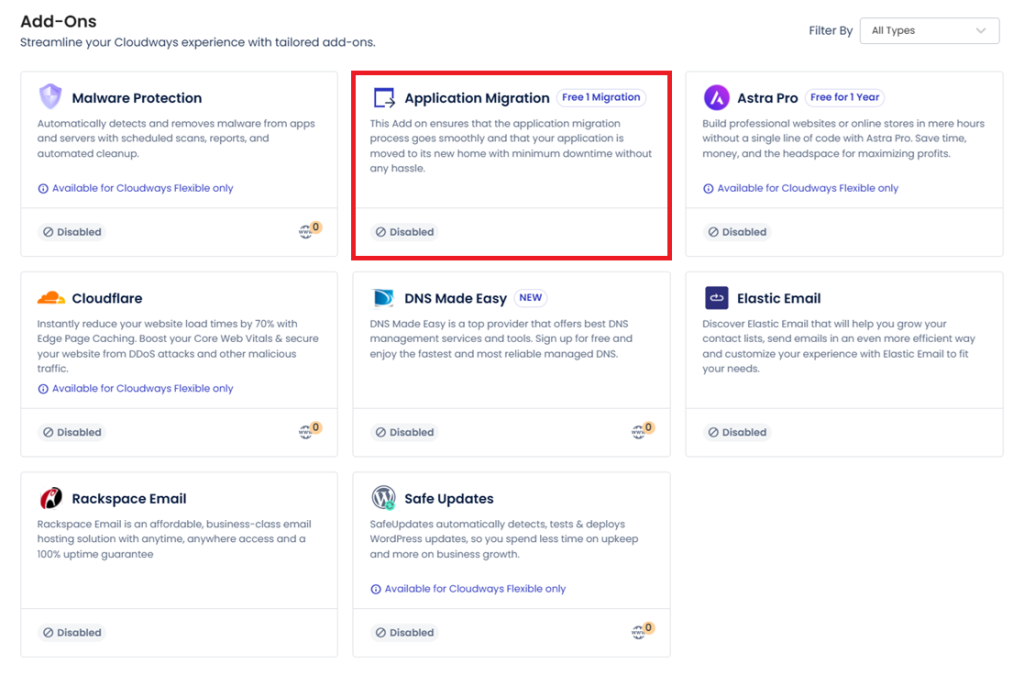
The Cloudways WordPress Migrator is a free plugin for moving WordPress and WooCommerce sites to Cloudways. Run the plugin on the source site and enter the destination details. You need administrator access to the source WordPress site and a Cloudways account. If you want to migrate your website yourself, this route gives you control of the process.
New Cloudways customers can get a free support-assisted transfer of their first website. This can be done by requesting assistance through the Cloudways platform to have support run through the WordPress Migrator plugin to transfer websites to Cloudways, as opposed to the customer running the plugin to transfer to a different host. See who is currently eligible and what the request process is with your Cloudways support team before you start transferring your sites.
| Decision pointCloudways WordPress MigratorSupport-assisted migration | ||
| Who handles transfer | You run the plugin and enter destination details | Cloudways support assists after your platform request |
| What you need | Source-site administrator access and Cloudways details | Cloudways account and a support request |
| Best fit | You can access the WordPress admin and manage settings | You want Cloudways support to assist with the transfer |
Make a restorable backup
A full backup includes the database and site files. The database stores posts, settings, and other site data; files include themes, plugins, and uploads. Follow your host’s backup steps and verify that you can restore the copy before relying on it.
Keep these parts in your backup:
- The WordPress database
- Files in wp-content
- The wp-config.php file
- Your custom .htaccess file
- A verified copy stored separately from the live site
Store the backup separately from the live site, and check that its database and files come from the same backup point. Backup methods depend on your host. Keep the source site and backup until you have checked the new application and domain.
Before you move your website, confirm that the backup is usable and that you can access your Cloudways account. Keep account information, including any required username and password, secure.
How Do You Set Up the Cloudways Destination?
Launch a WordPress application in Cloudways before starting the migration. The destination application must be running before you start the transfer. It receives the files and database from your source site.
Use the Cloudways platform to launch the application and find its connection details. Your source WordPress login is not the SFTP username and password.
Launch a WordPress application
Sign in to Cloudways and launch a WordPress application from the platform. Select the WordPress application type and choose a recognizable name. The Cloudways application will serve as the destination for your existing website.
Cloudways hosts applications on servers. Choose an available server setup based on your site’s traffic, features, and expected data use. Avoid selecting a server size or provider by guesswork.
Cloudways sets a default WordPress upload-size limit of 20 MB. Large media files can exceed it. The limit can be increased depending on server size. Verify the current limit and adjustment options in Cloudways documentation.
Install the Migrator on the source site
In the source site’s WordPress admin, open Plugins and search for the Cloudways WordPress Migrator. Install and activate the WordPress Migrator plugin using the source site’s admin account.
It’s usually best to install the Migrator plugin on the original site before you transfer to the new application. This is because the Migrator plugin reads information from the original site and then transfers it to your new destination on Cloudways. You don’t want to get source logins and destination logins mixed up.
Gather destination details
Open the destination application’s access or server details in the Cloudways platform. Record the application URL and server public IP address. Find the database name in the application’s database settings.
Master SFTP username and password for the server can be found in server access details for the platform. These are different from the source WordPress admin login information. Store them safely when preparing for the migration.
Before continuing, confirm that you can access the destination URL and have the master SFTP credentials ready.
Ready to migrate your WordPress website?
Explore Cloudways managed hosting and get started with your migration.
How Do You Configure and Run the WordPress Migrator Plugin?
The Cloudways WordPress Migrator needs four destination details: the application URL, server IP address, database name, and master SFTP credentials. Enter the Cloudways master SFTP username and password, not your source-site login. The plugin uses these details to connect to the destination application.
During the migration process, the plugin asks about password protection and custom directories. Match each answer to the source site or destination named in the prompt.
Enter the connection and authentication settings
Open the WordPress Migrator plugin on your source site. Enter the destination application URL, Cloudways server IP address, and database name, then add the master SFTP username and password from the Cloudways platform.
For destination HTTP authentication, select No if the application is not password-protected. If it is protected, select Yes and enter the credentials that unlock the destination. These are destination credentials, not your source WordPress admin login.
The plugin asks separately whether the source site has password protection. Select Yes and enter that site’s credentials if it does; otherwise, select No. Provide an email address for migration updates and error notices.
Choose directories and start the transfer
The Migrator can copy custom non-WordPress directories inside public_html. Select Yes to include folders with files WordPress does not manage, or No if you do not need them transferred.
Before you start the migration, review all URLs, email addresses, database names and user name / password combinations and make sure the answers for the authentication match the settings for source and target in the plugin. Start the transfer and keep the notice email open while the transfer is processing.
2026 guide estimate for transfer time is between 30 minutes and 12 hours depending on the size of the site. This is an external guide and not something that Cloudways can guarantee. The actual migration time will depend on the amount of data that needs to be moved and a large media library for example could take some time to transfer. If the status is still showing progress then the transfer has not stopped.
Troubleshoot common migration problems
Plugin cannot connect to site. Check for typing errors in Site’s Application URL, Site’s Server IP, and Site’s Database Name. Also, check that SFTP Username and SFTP Password are Cloudways master credentials. One wrong character and access will be denied.
Verify destination HTTP settings for password protection if authentication fails. Verify source-site protection answer separately. Never enter source-site credentials in a destination-site field.
Continuation advice for large transfers: Let it complete while it says it’s doing so. Subsequently check your email for any transfer updates/ errors. Examine the error notice together with the pertinent connection details and then get in touch with us if necessary.
How Do You Test the Site, Change DNS, and Enable SSL?
After the WordPress Migrator plugin has completed the migration, review the destination application prior to directing traffic to it. In addition to testing the site prior to altering your DNS, review for missing pages and failures within functions while visitors are still able to reach the source version of your site. Review both the public version of your site and the admin area of the site.
Keep your previous hosting account available while you test and switch the domain. It gives you a reference if you need to compare the migrated site or check information on the old host.
Check the migrated site before launch
Open up the key pages of the destination site at the destination URL to ensure all text and media is loading correctly, test out the forms and other interactive elements that users would normally use on the site. Log into the Cloudways WordPress admin area for the newly installed site with the credentials set up for that site.
Custom .htaccess rules as well as 301 redirects should be checked on the target system and any missing rules re-applied to ensure existing links continue to work as expected. For a WooCommerce store, for example, it is useful to compare all orders that have been received via the migration process with the corresponding records on the target system.
Use this pre-launch checklist before pointing your domain:
- Check key pages and media files.
- Test forms and checkout.
- Confirm the new wp-admin credentials work.
- Review 301 redirects and custom .htaccess rules.
- Check current WooCommerce orders.
If the temporary site is left live while the real domain is set up, use an available setting to keep search engines from indexing the temporary URL. Remove this setting when the real domain is ready. A temporary URL should not appear as a separate copy in search results of the real domain.
Point your domain to Cloudways
Once you have tested your application, add your domain in the application’s Domain Management area in Cloudways. Then update the A record of your real domain’s DNS to the Public IP address of your Cloudways server. This will direct traffic from your real domain to the new server – it won’t transfer the domain registration for your real domain.
The time it takes for DNS changes to propagate can vary between a few minutes and 48 hours depending on the DNS provider. Till the time the new DNS is propagated completely, some users might be redirected to the old hosting server while others are redirected to the Cloudways application. It is recommended to keep the previous hosting account active till the new domain starts working consistently.
Enable SSL and reduce downtime
Cloudways provides a free Let’s Encrypt SSL certificate for your domain. Add the domain, then enable the certificate for the application in the platform. SSL encrypts the connection between your website and its visitors.
Turn on automatic HTTPS redirection after the certificate is active. This sends visitors from the HTTP version to the secure HTTPS version. Check the site again using the real domain, including forms and checkout.
When migrating a WooCommerce shop, it’s a good idea to plan the switch with the aim to complete the transfer as fast as possible to limit the time it takes for new orders to be processed from the new hosts. Make sure to check for any new orders on both hosts and verify that the destination has been updated with the latest data. For any assistance required with the migration and necessary settings on the Cloudways platform, feel free to reach out to Cloudways support team.
Want to understand the costs before migrating? Read our Cloudways Pricing Guide to explore hosting plans and potential expenses.
Conclusion
A successful Cloudways migration takes more than transferring data. Verify your backup, test the destination application, and check the website before directing visitors to it. Keep your source-site password and account details secure throughout the process.
Keep the old site & backup around until new domain, redirects & store orders are confirmed on new site. That’s the last set of checks before you start relying on the Cloudways application.